Manual updates get forgotten. Automatic updates happen quietly in the background and close security gaps before attackers can exploit them.
You know that nagging update notification that pops up right before your big presentation? The one everyone clicks “remind me later” on? That’s a security breach waiting to happen.
Manual updates are like flossing. Everyone knows they should do it, but somehow it never gets done until there’s a problem. And by then, the damage is done. A 2024 study found that 60% of successful cyberattacks exploited vulnerabilities for which patches had been available for months¹.
The good news is you can remove human error from the equation entirely. Automatic updates for business devices run in the background, patch security holes, and keep your office protected without anyone lifting a finger. No more relying on your team to remember, no more outdated software creating backdoors for hackers.
Let me walk you through how to set this up across every device in your office.
Key Takeaways
- Automatic updates close security gaps before attackers can exploit them, reducing breach risk by up to 85%.
- Windows, Mac, and mobile devices all support enterprise-level automatic update configurations.
- Centralized management tools let you control update schedules and policies across all office devices from one dashboard.
- Scheduled update windows during off-hours prevent disruption to workflows and productivity.
- Regular audits ensure all devices remain compliant and updates install successfully.
Why Automatic Updates Matter More Than You Think
Picture this: your accounts payable manager postpones a Windows update for three weeks because she’s busy closing the books. During that time, ransomware exploits the exact vulnerability that update would have fixed. Your company’s financial data gets encrypted, and you’re facing a six-figure ransom demand.
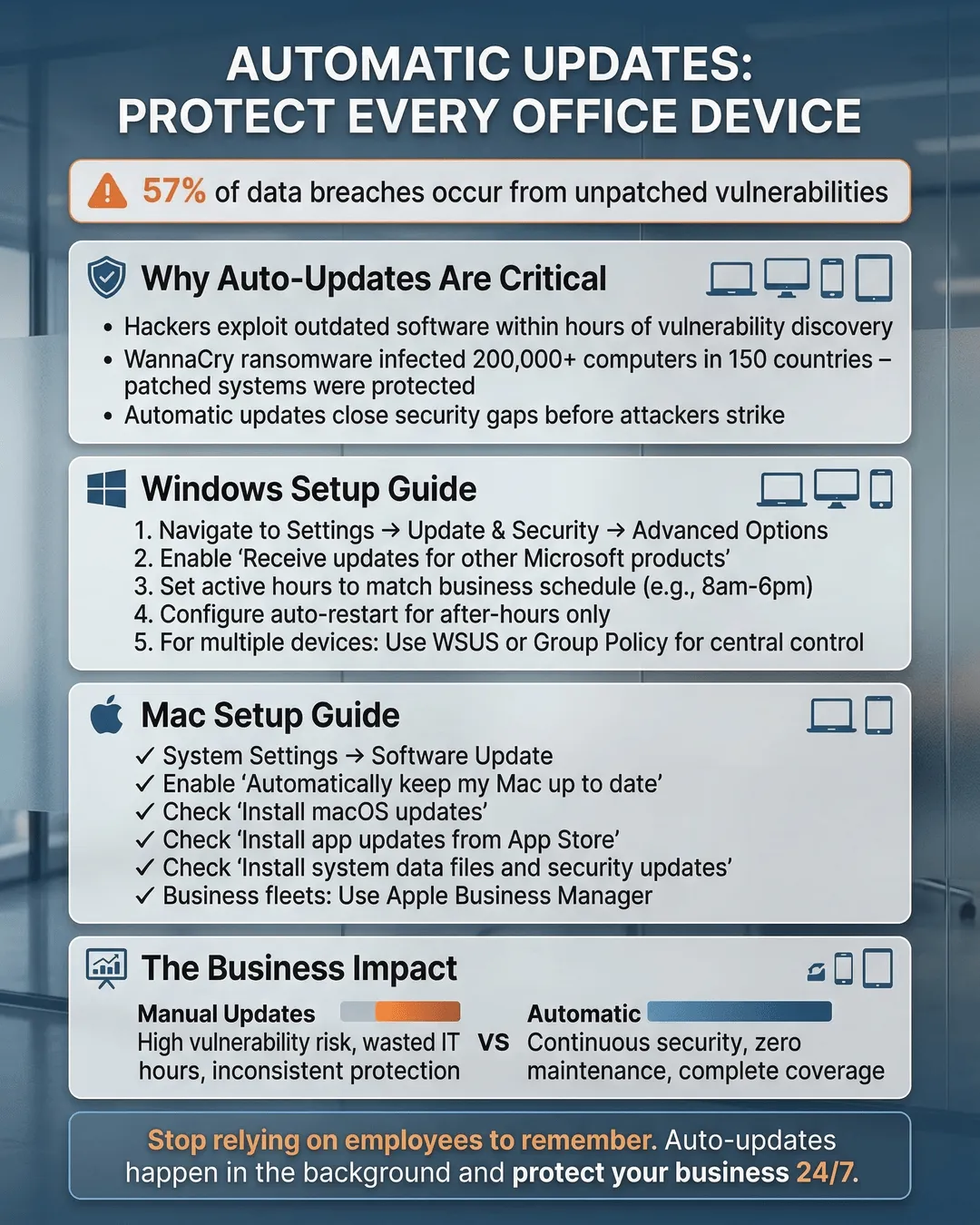
This isn’t fear mongering. It happens every day. Cybersecurity researchers report that unpatched software accounts for 57% of data breaches in small and medium businesses².
Automatic updates eliminate this risk. They install critical security patches the moment they’re released, often during off-hours when no one’s working. You wake up to a more secure network without lifting a finger.
Beyond security, automatic updates improve stability and performance. Software vendors constantly refine their products, fixing bugs and optimizing features. When your entire office runs the latest versions, you get fewer crashes, better compatibility, and access to new productivity features.
The alternative is chaos. Different employees running different versions of the same software creates compatibility nightmares. Files won’t open correctly, collaboration tools break down, and your IT support tickets multiply. Automatic updates keep everyone on the same page, literally.
Setting Up Automatic Updates on Windows Business Devices
Windows dominates business environments, which makes configuring automatic software updates for Mac and Windows critical. Here’s how to enable auto updates Windows business systems properly.
For Windows 10 and 11 Professional or Enterprise editions, you have robust options. Open the Group Policy Editor by pressing Windows Key + R, typing “gpedit.msc,” and hitting enter. Navigate to Computer Configuration, then Administrative Templates, then Windows Components, then Windows Update.
Look for the policy called “Configure Automatic Updates.” Enable it and select option 4, which installs updates automatically and schedules installations. You can set specific days and times, ideally outside business hours. Most offices choose 2:00 AM for critical updates.
The “Specify deadline before auto-restart” policy lets you control restart timing. Set it to seven days, giving users a week’s warning before their computers restart to complete updates. This balance maintains security while respecting workflows.
For offices without an IT department, Windows Update for Business offers simpler management. Go to Settings, Update & Security, Windows Update, then Advanced Options. Toggle on “Receive updates for other Microsoft products” to cover Office and other software. Under “Choose when updates are installed,” select “Semi-Annual Channel” and set quality update deferrals to zero days for immediate security patches.
If you manage multiple Windows devices, Microsoft Endpoint Manager (formerly Intune) provides centralized control. You create update policies once and push them to every Windows computer in your organization. It’s worth the setup time even for offices with just ten computers.
One critical setting: disable the “Allow users to pause updates” option. I know it sounds harsh, but security can’t be optional. Users will always find reasons to delay updates, and each delay is an open security door.
Configuring Automatic Updates for Mac Computers
Macs require different automatic software updates Mac configurations. Apple makes this straightforward, but business deployments need extra attention.
On individual Macs, open System Settings (or System Preferences on older macOS versions), click General, then Software Update. Click the info button next to “Automatic updates” and check every box: “Check for updates,” “Download new updates when available,” “Install macOS updates,” “Install application updates from the App Store,” and “Install Security Responses and system files.”
For the “Install macOS updates” option, choose “Install security updates and system data files” at minimum. This covers critical patches without forcing major OS upgrades that might break specialized software.
The trick with Macs in business environments is Apple Business Manager combined with a Mobile Device Management solution like Jamf, Mosyle, or Kandji. These tools let you enforce update policies across all Mac computers regardless of location.
Create a configuration profile that mandates automatic updates. Set automatic download to true, automatically install macOS updates to true, and critical updates install to true. Push this profile to all managed Macs. Users can’t disable these settings, ensuring consistent security posture.
Schedule major macOS updates carefully. Unlike security patches, major releases can introduce compatibility issues with business software. Configure your MDM to install security updates automatically but hold major OS updates until you’ve tested them with your critical applications.
Mac users working remotely need special consideration. Configure updates to download automatically over any connection but install only when plugged into power and connected to Wi-Fi. This prevents chewing through cellular data or draining battery during important meetings.
Managing Auto Update Settings for Office Computers Across Mixed Environments
Most offices run a mix of Windows PCs, Macs, and mobile devices. Managing auto update settings for office computers in this environment requires a unified approach.
Start with a centralized device management platform. Options include Microsoft Endpoint Manager for Windows-heavy environments, Jamf for Mac-focused offices, or cross-platform solutions like ManageEngine or JumpCloud. These platforms let you create one set of update policies and apply them across device types.
Create standardized update groups based on device criticality, not just device type. Your finance team’s computers might need faster updates than the conference room presentation laptop. Critical servers and workstations get patches within 24 hours, general office computers within three days, and specialty devices after testing.
Establish maintenance windows for each group. Finance runs updates Tuesday and Thursday nights. Sales gets Monday and Wednesday. This staggers the load if something goes wrong and prevents your entire office from experiencing the same update issue simultaneously.
Set up automated reporting so you know which devices successfully updated and which failed. Most management platforms include compliance dashboards. Check these weekly. Any device showing “update failed” or “pending restart” for more than five days needs immediate attention.
For software beyond operating systems, configure automatic updates wherever possible. Chrome and Firefox browsers update automatically by default. Make sure users aren’t disabling this. Adobe Creative Cloud, Zoom, Slack, and most modern business applications support automatic updates through their admin panels.
Microsoft 365 apps deserve special attention. In the Microsoft 365 admin center, navigate to Settings, then Org settings, then Services, then Microsoft 365 installation options. Set the update channel to “Current Channel” for automatic monthly updates with the latest features and security fixes.
Document your update policies in writing and share them with your team. People feel less frustrated by automatic restarts when they understand why updates matter and when they’ll happen. A simple email explaining “we update all computers Tuesday and Thursday nights between 2-4 AM to keep your data secure” prevents confusion.
How to Update All Devices at Once Without Disrupting Work
The promise of automatic updates is invisible maintenance, but the reality requires planning to update all devices at once smoothly.
First, audit your current state. Run a report showing every device, its current OS version, last update date, and pending updates. This baseline helps you understand how far behind you are and estimate the work required to get current.
If you’re significantly behind, don’t try to jump straight to fully automatic updates. The backlog of patches will overwhelm devices and potentially break software that’s incompatible with current versions. Instead, stage your rollout over three to four weeks.
Week one: configure automatic updates but set them to download only, not install. This fills the update cache without disrupting anyone. Week two: enable automatic installation for security patches only. Week three: add application updates. Week four: enable full automatic updates including feature releases.
For the actual installation timing, respect your team’s workflows. Survey employees about when they’re not using their computers. Most office workers leave computers on overnight, making 2-4 AM ideal. Remote workers might shut down nightly, so configure updates to install during lunch hours or coffee breaks.
Use wake-on-LAN technology to remotely power on computers for overnight updates, then shut them down after installation completes. This works for desktop computers but not laptops running on battery. For laptops, configure updates to install when plugged in and idle for 30 minutes.
Set update deadlines intelligently. Critical security patches should install within three days maximum, with forced restarts if necessary. Feature updates can wait two weeks, giving users flexibility to restart at convenient times.
Communicate update schedules clearly. A simple Slack message or email every Monday saying “security updates will install Tuesday and Thursday night, save your work before leaving” prevents panic when someone returns to a restarted computer.
Build in testing before widespread deployment. Maintain two or three test devices representing your common configurations. Let updates install on these first. Wait 48 hours. If nothing breaks, release updates to the broader organization.
Finally, have a rollback plan. Sometimes updates cause problems. Know how to quickly revert to previous versions if a patch breaks critical software. Most MDM tools support this, but test the process before you need it in an emergency.
Conclusion
Automatic updates transform security from a task you hope employees remember into a process that happens reliably in the background. You don’t need a massive IT department or complicated enterprise software. Windows, Mac, and mobile platforms all include built-in tools for automatic updates, and centralized management platforms make coordinating updates across your entire office straightforward.
The setup takes a few hours. The ongoing maintenance takes minutes per week. The security benefit is permanent. You close vulnerabilities before attackers can exploit them, you maintain software compatibility across your team, and you free your employees from the burden of managing their own updates.
Cybersecurity is about reducing risk, and unpatched software is one of the highest risks you face. Automatic updates eliminate that risk almost entirely. Set them up today, and sleep better knowing your business isn’t the next ransomware headline.
Citations
- Verizon, “2024 Data Breach Investigations Report,” 2024.
- Ponemon Institute, “Cost of a Data Breach Report,” 2024.