One employee sharing the wrong folder with the wrong link can expose confidential data to the entire internet. Controlling external sharing is essential.
Your team uses cloud storage to collaborate. Files sync across devices. Everyone has access to what they need. It works smoothly until it doesn’t.
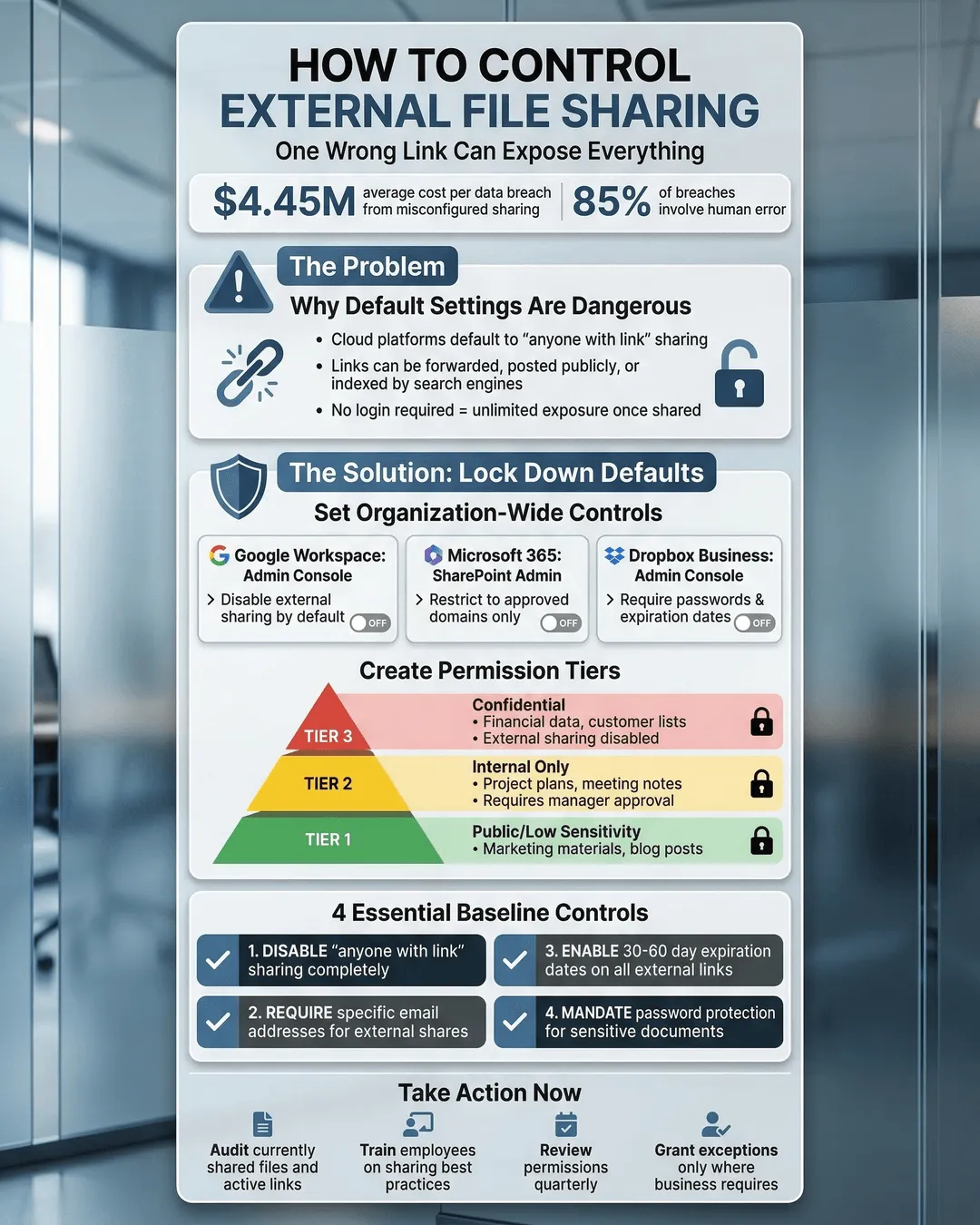
One employee shares a folder with a client. They choose “anyone with the link” instead of restricting it to specific email addresses. That link gets forwarded. Then forwarded again. Within days, your company’s financial projections, customer lists, or product roadmaps are accessible to anyone on the internet. No login required.
This happens more often than you think. External file sharing is convenient, but without proper controls, it becomes a liability. The good news is you can prevent these scenarios without making life harder for your team.
Key Takeaways
- External sharing defaults in most cloud platforms are too permissive and require immediate adjustment to prevent accidental data exposure.
- Link-based sharing with “anyone with the link” permissions creates untrackable access that can spread beyond your intended recipients.
- Domain restrictions, expiration dates, and password protection add layers of security that significantly reduce the risk of data leaks.
- Regular audits of sharing permissions help identify and revoke inappropriate external access before it becomes a problem.
- Employee training on sharing best practices is as important as technical controls in preventing data breaches.
Why External Sharing Controls Matter More Than You Think
Cloud file sharing platforms like Google Drive, Dropbox, OneDrive, and Box have made collaboration effortless. Your team can share documents with partners, clients, and contractors in seconds. But that same ease creates risk.
A 2024 study found that 43% of organizations experienced at least one data breach caused by improper file sharing permissions¹. Many of these breaches were not malicious. They resulted from simple mistakes. An employee selecting the wrong sharing option. A contractor forwarding a link they shouldn’t have. A public link that never expired.
When you don’t control external file sharing, you lose visibility into who accesses your data. You can’t track where links go after they leave your organization. You can’t revoke access once a link spreads. And you probably won’t know there’s a problem until someone reports seeing your confidential information online or a competitor references data they shouldn’t have.
The stakes are high. Data breaches cost companies an average of $4.45 million in 2024, with small and medium businesses often suffering disproportionately due to limited resources for recovery². Beyond financial costs, breaches damage customer trust, create compliance headaches, and expose your organization to lawsuits.
Understanding the Weak Points in File Sharing
Before you can fix the problem, you need to understand where vulnerabilities hide.
Default sharing settings in most cloud platforms favor convenience over security. When someone clicks “share,” the default option is often “anyone with the link.” This creates a public URL that works for anyone, anywhere. No authentication required. The link can be posted on social media, sent in an email chain, or indexed by search engines.
Link forwarding compounds the risk. You send a link to one person. They forward it to their team. Someone on that team forwards it to an external consultant. Within a few hops, people you’ve never heard of have access to your files. You have no record of who viewed or downloaded them.
Lack of expiration means links remain active indefinitely. A document you shared with a potential customer two years ago? Still accessible if they kept the link. A presentation sent to a job candidate who didn’t get hired? They can still open it.
Permission creep happens when employees grant external users edit access instead of view-only. External collaborators can then reshare the file with their own networks, further spreading access beyond your control.
Most organizations don’t realize how exposed they are until they conduct an audit. One IT director at a mid-sized professional services firm discovered over 800 files shared externally with “anyone with the link” permissions. Many contained sensitive client information. None of the sharing employees remembered creating those links.
How to Restrict File Sharing in Cloud Platforms
Controlling external sharing requires a combination of platform settings, policies, and user education. Here’s how to lock things down without frustrating your team.
Disable “anyone with the link” sharing. Most platforms allow administrators to turn off public link sharing entirely. In Google Workspace, you can restrict sharing to people within your organization only. In Microsoft 365, you can disable anonymous sharing for OneDrive and SharePoint. This forces employees to specify exact email addresses when sharing externally.
If you need some external sharing capability, configure it to require authentication. External recipients must sign in with their own accounts before accessing shared files. This creates an audit trail and lets you revoke access later if needed.
Set domain restrictions. If you regularly collaborate with specific partner organizations, whitelist their domains. This allows sharing with email addresses from approved companies while blocking everyone else. For example, you might allow sharing with @clientcompany.com but block all other external domains.
Require password protection and expiration dates. When employees must share externally, require them to set passwords and expiration dates on shared links. A link that expires in 30 days limits the window of vulnerability. A password adds another authentication layer. Most platforms support these features, but you need to make them mandatory rather than optional.
Default to view-only permissions. Configure your systems so external sharing defaults to viewer access, not editor. If someone needs edit permissions, they should have to consciously select that option and justify it. This reduces the risk of external parties resharing or modifying your files.
Use sharing request workflows. Some organizations implement approval processes for external sharing. When an employee tries to share a file outside the organization, it triggers a request to IT or management. This adds friction but prevents unauthorized sharing entirely. Consider this approach for highly sensitive departments like finance, legal, or HR.
According to Sarah Chen, Chief Information Security Officer at a financial services company, “The biggest mistake organizations make is assuming their employees understand the security implications of different sharing options. Most people just click whatever gets the file to the recipient fastest. You need to make the secure option the default option.”³
Implementing File Sharing Permissions Best Practices
Technology alone won’t solve the problem. You need clear policies and ongoing training.
Create a file sharing policy. Document exactly how employees should share files internally and externally. Specify which types of files can be shared with which audiences. Define acceptable sharing methods. Make the policy easy to find and written in plain language. Save the 40-page security manual for IT. Your team needs a one-page quick reference guide.
Classify your data. Not all files carry the same risk. Public marketing materials can be shared freely. Customer lists and financial data cannot. Implement a simple classification system. Many organizations use three tiers: public, internal, and confidential. Train employees to label files and apply appropriate sharing restrictions based on classification.
Train employees regularly. Run quarterly training sessions on file sharing security. Use real examples from your industry. Show what happens when sharing goes wrong. Make it concrete and relevant, not abstract. People remember the story of how a competitor gained market intelligence from a carelessly shared file more than they remember a bullet point about security.
Conduct sharing audits. Review external sharing permissions monthly or quarterly. Most cloud platforms provide reports showing who shared what with whom. Look for patterns. Are certain departments oversharing? Are specific individuals creating security risks? Use the data to identify training opportunities and tighten controls where needed.
Provide alternatives for large file transfers. Sometimes employees share files externally because they need to send large attachments email won’t handle. Provide secure file transfer solutions designed for external sharing. These tools typically offer better security controls, expiration options, and audit trails than general-purpose cloud storage.
Make security visible. When someone shares a file, show them exactly what permissions they’ve granted. A preview that says “Anyone with this link can view this file forever” is more effective than a dropdown menu with technical jargon. Some organizations add warning banners to files containing sensitive data, reminding employees to think before sharing.
A 2025 report found that organizations with comprehensive file sharing policies and regular training reduced data leak incidents by 67% compared to those relying on default platform settings alone⁴.
Monitoring and Maintaining Control
Setting up controls is step one. Maintaining them requires ongoing attention.
Use data loss prevention tools. DLP solutions can detect when sensitive information is being shared externally and block or flag the action. They scan file contents for patterns like credit card numbers, social security numbers, or proprietary data formats. While not perfect, they catch many accidental exposures.
Enable audit logging. Turn on detailed logging for all sharing activities. Record who shared what, with whom, when, and what permissions were granted. Store these logs and review them regularly. They’re essential for investigating incidents and demonstrating compliance with regulations.
Set up alerts. Configure your systems to notify administrators when unusual sharing activity occurs. A single employee sharing 50 files externally in one day should trigger an alert. Someone sharing a file labeled “confidential” with an external domain should generate a notification.
Review permissions quarterly. External sharing permissions accumulate over time. People leave your organization but retain access to shared files. Projects end but sharing links remain active. Schedule quarterly reviews to clean up outdated permissions and revoke unnecessary access.
Test your controls. Periodically verify that your restrictions work as intended. Have someone outside IT try to share files externally and confirm they encounter the expected limitations. Technology configurations can change during platform updates or migrations.
Conclusion
External file sharing doesn’t have to be a security nightmare. With the right combination of platform settings, clear policies, and employee training, you can maintain control without sacrificing collaboration.
Start by assessing your current exposure. Run a sharing audit to see how many files your organization has shared externally and with what permissions. The results will likely surprise you and provide the business case for implementing stricter controls.
Then make the secure option the easy