Your business email is the number one target for attackers. Seven simple changes can dramatically reduce your risk starting today.
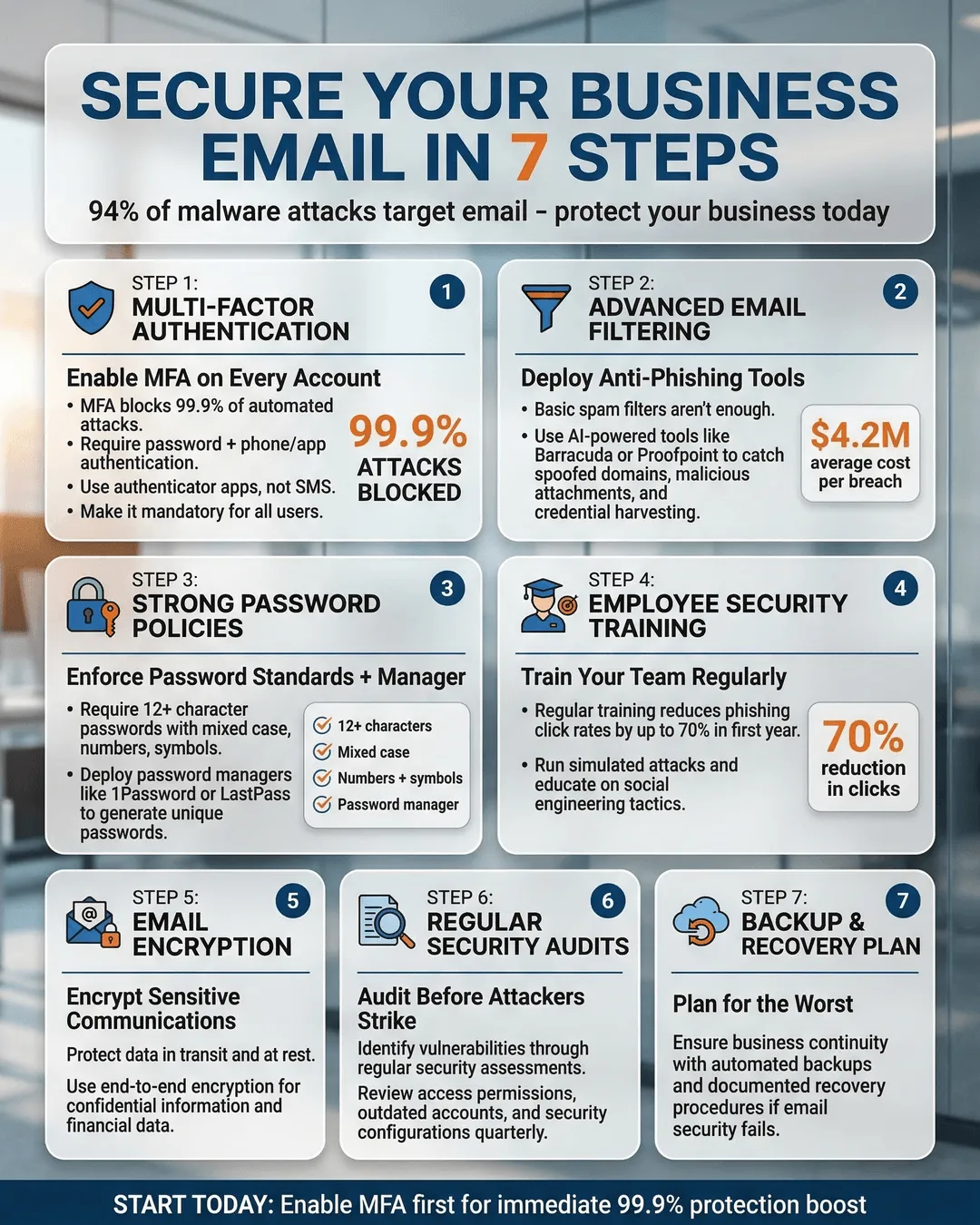
Your inbox holds everything. Client contracts, financial records, employee data, and access to your most critical systems. That’s exactly why attackers target business email more than any other entry point.
In 2024, 94% of organizations experienced email-based cyberattacks¹. The average cost of a business email compromise reached $4.89 million per incident². These aren’t just large enterprise problems. Small and medium businesses suffered 43% of all cyberattacks, with email as the primary attack vector³.
The good news? You don’t need a massive IT budget or a dedicated security team to protect your business email. Most breaches happen because of simple, preventable mistakes. Fix those gaps, and you’ll block the majority of attacks before they reach your team.
Here are seven straightforward steps that work for any business, regardless of size or technical expertise.
Step 1: Enable Multi-Factor Authentication Everywhere
Multi-factor authentication (MFA) requires two forms of verification before granting access. Usually that’s your password plus a code sent to your phone or generated by an authenticator app.
This single change blocks 99.9% of automated attacks⁴. Even if someone steals your password through a phishing email or data breach, they still can’t access your account without that second factor.
Set up MFA on every email account in your organization. Don’t stop at email. Apply it to any system connected to your email: cloud storage, project management tools, financial platforms, and HR systems.
Most email providers make this easy. Microsoft 365, Google Workspace, and other platforms offer built-in MFA. You’ll find the setting in your admin console under security or authentication settings.
Use authenticator apps rather than SMS codes when possible. Apps like Microsoft Authenticator or Google Authenticator generate time-based codes that are harder to intercept than text messages.
Your team might resist the extra step initially. That resistance disappears the first time MFA stops an actual breach attempt. Frame it as cheap insurance that takes five seconds per login.
Step 2: Train Your Team to Spot Phishing Attacks
Technical defenses matter, but your employees are your first line of defense. Attackers know this. They craft emails designed to bypass filters and trick people into clicking malicious links or sharing credentials.
Phishing attacks accounted for 36% of all data breaches in 2024⁵. These emails look increasingly legitimate. They spoof executive email addresses, mimic vendor invoices, and create urgent scenarios that pressure quick action.
Run regular phishing simulations. Services like KnowBe4, Proofpoint, or even built-in tools from Microsoft and Google let you send fake phishing emails to your team. Track who clicks. Provide immediate feedback and training to those who fall for the test.
Teach specific red flags. Generic greetings, urgent requests for money or credentials, unexpected attachments, slight misspellings in sender addresses, and links that don’t match the displayed text all signal potential phishing.
Create a simple reporting process. Make it easy for employees to forward suspicious emails to your IT team or security contact. Reward people who report potential threats rather than punishing those who accidentally click.
One manufacturing company reduced successful phishing clicks from 28% to 3% within six months using monthly simulations and quick training videos⁶. The entire program cost less than $2,000 annually.
Step 3: Implement Email Filtering and Anti-Spam Protection
Modern email filters catch threats before they reach inboxes. They scan for known malware signatures, suspicious links, spoofed sender addresses, and content patterns common in phishing emails.
If you use Microsoft 365 or Google Workspace, you already have strong filtering capabilities. Turn them on fully. Many businesses run with default settings that leave advanced protection features disabled.
Configure your spam filter to quarantine suspicious emails rather than deleting them immediately. This creates a safety net if legitimate messages get caught while still protecting your team from obvious threats.
Add domain-based message authentication reporting and conformance (DMARC) to your email security setup. DMARC prevents attackers from sending emails that appear to come from your domain. This protects your brand and prevents spoofed internal emails that trick employees.
Setting up DMARC requires adding DNS records to your domain. Your email provider offers step-by-step guides. Start with a monitoring policy to see what gets flagged, then move to enforcement once you’re confident legitimate email won’t be blocked.
Businesses with properly configured DMARC policies experienced 70% fewer successful spoofing attacks compared to those without⁷.
Consider adding a third-party email security gateway for additional protection. Solutions like Barracuda, Mimecast, or Proofpoint provide extra layers of scanning, sandboxing suspicious attachments, and analyzing link destinations before users click.
Step 4: Enforce Strong Password Policies and Use a Password Manager
Weak passwords remain one of the easiest ways for attackers to breach accounts. “Password123” and minor variations still appear in the most commonly used password lists every year.
Require passwords of at least 12 characters mixing uppercase, lowercase, numbers, and symbols. Ban common passwords and previously breached passwords. Microsoft 365 and Google Workspace can automatically block passwords that appear in known breach databases.
Better yet, deploy a password manager across your organization. Tools like 1Password, Bitwarden, or Keeper generate strong unique passwords for every account and store them securely.
Password managers eliminate the excuse that complex passwords are too hard to remember. Your team only needs to remember one master password. The manager handles everything else.
Companies using password managers saw 81% fewer password-related security incidents⁸. Employees stopped reusing passwords across work and personal accounts, which prevents credential stuffing attacks where stolen passwords from one breach get tried on other services.
Set password expiration policies carefully. Forcing frequent changes often backfires. People create predictable patterns or write passwords down. Instead, require changes only when compromise is suspected and rely on MFA for ongoing protection.
Step 5: Restrict Email Forwarding and Suspicious Access
Attackers who compromise an email account often set up automatic forwarding rules. These rules silently copy every incoming email to an external address, letting attackers monitor your communications even after you change your password.
Configure your email system to block or alert on automatic forwarding to external domains. Microsoft 365 and Google Workspace both offer this as a policy setting. You can allow exceptions for specific trusted domains while blocking everything else.
Monitor for unusual access patterns. Set up alerts when someone logs in from an unexpected location, uses an unfamiliar device, or accesses email at odd hours. Most email platforms include this in their security dashboards.
Review mailbox delegation and shared mailbox access regularly. Employees who change roles or leave the company often retain access they no longer need. Quarterly access reviews take minimal time and eliminate lingering security gaps.
One law firm discovered an old forwarding rule set up by a former IT contractor. For eight months, confidential client communications had been copied to an external Gmail account⁹. Regular rule audits would have caught this immediately.
Step 6: Encrypt Sensitive Email Content
Not every email needs encryption, but financial data, legal documents, health information, and other sensitive content should never travel unencrypted.
Email encryption scrambles message content so only the intended recipient can read it. Even if attackers intercept the email during transmission, they see only gibberish without the decryption key.
Most business email platforms include built-in encryption. Microsoft 365 offers Office 365 Message Encryption. Google Workspace provides confidential mode with expiring access and revocation capabilities.
For messages with highly sensitive content, use end-to-end encryption tools like Virtru or ProtonMail. These ensure even your email provider can’t read the message content.
Train your team on when encryption is required. Create simple policies: customer payment information, employee personnel files, legal contracts, and proprietary business data always get encrypted. Routine scheduling emails and internal updates don’t need it.
The key is making encryption easy enough that people actually use it. If the process is complicated, employees will skip it when they’re busy. Most modern tools add encryption with a single button click.
Healthcare organizations using consistent email encryption reduced compliance violations by 62% and avoided potential HIPAA fines averaging $50,000 per incident¹⁰.
Step 7: Back Up Your Email and Have a Recovery Plan
Ransomware attacks increasingly target email systems. Attackers encrypt mailboxes and demand payment for the decryption key. Without backups, you’re left choosing between paying criminals or losing years of business correspondence.
Implement automated email backups that run daily. Store backups separately from your primary email system. Cloud-to-cloud backup services like Dropsuite, Barracuda, or Spanning protect Microsoft 365 and Google Workspace accounts.
Test your backups quarterly. A backup you can’t restore is worthless. Run a drill where you recover a deleted mailbox or restore emails from a specific date range. Time how long it takes and identify any gaps in your process.
Create an incident response plan before you need it. Document who to contact if email gets compromised, how to isolate affected accounts, steps for password resets across the organization, and when to involve law enforcement or legal counsel.
Companies with tested backup and recovery procedures restored email access in an average of 4 hours after a ransomware attack. Those without a plan took an average of 21 days¹¹.
Your email backup should retain deleted items for at least 90 days. This protects against both malicious deletion and accidental removal of important messages.
Conclusion
Business email security isn’t optional anymore. The attacks are too frequent and the consequences too severe. But you don’t need to be a cybersecurity expert to protect your organization.
Start with these seven steps today. Enable multi-factor authentication this afternoon. Schedule phishing training for next week. Review your email filtering settings and password policies. Each change takes minimal time but dramatically reduces your risk.
The businesses that get breached aren’t usually the ones with the most valuable data. They’re the ones with the easiest access. Make your business harder to breach than the next target, and attackers will move on to easier victims.
Your email security directly affects your reputation, your client relationships, and your bottom line. The good news is that you now have a clear roadmap. Follow it, and you’ll sleep better knowing your business communications are protected.
Key Takeaways
- Multi-factor authentication blocks 99.9% of automated attacks and should be enabled on every business email account.
- Regular phishing training and simulations can reduce employee click rates from 28% to 3% within six months.
- Email filtering, DMARC policies, and anti-spam protection catch threats before they reach employee inboxes.
- Password managers eliminate weak password problems and reduce password-related security incidents by 81%.
- Monitoring email forwarding rules and access patterns helps detect compromised accounts before significant damage occurs.
- Encrypting sensitive email content protects confidential business information and reduces compliance violations by 62%.
- Daily automated backups with tested recovery procedures let you restore email access in hours rather than weeks after an attack.
Citations
- Proofpoint, “State of the Phish Report,” 2024.
- IBM Security, “Cost of a Data Breach Report,” 2024.
- Verizon, “Data Breach Investigations Report,” 2024.
- Microsoft Security, “Effectiveness of Multi-Factor Authentication,” 2024.
- Anti-Phishing Working Group, “Phishing Activity Trends Report,” 2024.
- KnowBe4, “Phishing by Industry Benchmarking Report,” 2024.
- Valimail, “DMARC Adoption and Email Fraud Report,” 2024.
- LastPass, “Password Security Report,” 2024.
- American Bar Association, “Legal Technology Survey Report,” 2024.
- Protenus, “Healthcare Breach Barometer Annual Report,” 2024.
- Sophos, “State of Ransomware Report,” 2024.